Choosing a static site generator
I am not familiar with web development, it’s just not something I have done. I still wanted to have a personal site that was not wordpress based so I settled on a static site generator. I came across GitHub Pages and Jekyll. After doing some light research, I settled on Hugo due to being lightweight, fast, and providing some really great themes at no cost. This is a bit dated since I stood this up originally two years ago, but hopefully it helps someone out there.
As I am writing this I came to the realization the Cloudflare Pages is being deprecated in its current state so I will probably end up writing a blog about migration soon as well. Hurray!
Hosting and deployment
I wanted to use my own custom URL and not have to do a bunch of work for it, I settled on Cloudflare pages with GitHub as the code repository.
Resources to set up a Blog like this
Instead of rewriting what has already been written, I am going to link the resources. There are plenty of blogs out there about initial creation and deployment, but I wanted to concentrate on the challenges I had in deploying a static site with Cloudflare pages. I found the Cloudflare Hugo walk through and Codex Theme Github page more than enough information to start on building your site and content
A simple walk through on how to set up a Hugo site
Adam the Automator article that convinced to use Cloudflare Pages
Codex Theme GitHub
Honestly follow the three items above for a basic setup or choose your own theme from all the ones that exist!
Challenges
There are a few challenges I worked through.
- The home page wouldnt render properly
- The icons for social media sites went missing
- Adding additional menu items and organizing them
Home page render issue
This one took me a few days to understand all things going wrong. The three items I had to correct were the following:
- Cloudflare Page configuration
- Cloudflare website settings
- My process for site deployment
Cloudflare Pages configuration
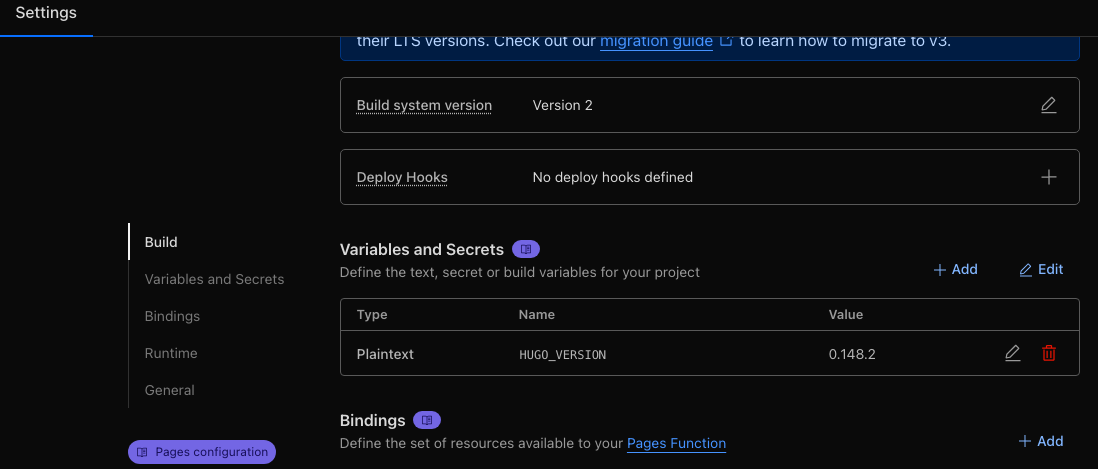
Under the Cloudflare pages site there is a setting for variables. By default Cloudflare pages builds with an older version of Hugo. If you are using a newer build, it will need to be specified in the environmental variables. This also means every time Hugo updates on your system, you need to update the setting in Cloudflare Pages.
Cloudflare WebSite settings
From your main dashboard, choose the website associated with your page. Under optimization you will want to make a few configuration changes.
- Disable AutoMinify for JavaScript, CSS, and HTML
- Disable RocketLoader
If you have AutoMinify enabled I have found that it if you use integrity in the Hugo theme, it will throw a SHA error when loading. This can be viewed if you check the console while loading the page. If you search this error, most StackOverflows state to remove “{{ $script.Data.Integrity | safeHTMLAttr }}” from the integrity field.
While removing security configs may correct the error, it’s not the best way to handle this, and you have to do it for every HTML page. The problem is the “autominify” is changing the SHA of your files by “minifying” the website after you build it, changing the SHA hash of the pages. By just disabling AutoMinify you leave the security in place for CORS and fix the issue. Since these sits are static and small, this is a minimal impact on website speed.
Another setting that can cause issues is RocketLoader, if you are having issues you can also disable it to address potential issues.
Build issues
As someone new to this I didnt understand how deployments work. So part of the hash issues were the fact that I was not “building” the site prior to pushing to GitHub from VSCode. The workflow is code>build>deploy.
What that looks like with Hugo is you pull the code down, modify it, and then before you push to Main branch on Github, you need to build the site using the “hugo” command, otherwise the deployment will not work properly and the hashing will not update.
Social Media Icons missing
I realized as I was looking through the site the links at the bottom of the page between blogs was rerouting to example.org. I tracked this down to the config.toml file and realized the “baseURL” had not been updated to my domain. Once this was changed to my domain, the social media icons and the navigation between blogs worked!
Adding additional menus
This will depend on the theme you choose. Make sure you read the documentation with the theme you chose!
In the config.toml file, towards the bottom, you will find the menu items. They will look like this:
[[menu.main]]
identifier = “home”
name = “home”
title = “Home”
url = “/"
You can additional ones and create associated markdown files in the root folder, not under content to link to these pages!
[[menu.main]]
identifier = “about”
name = “about”
title = “About”
url = “/about”
create a new markdown content file in Hugo using the Hugo new and make sure the file name matches the URL in the “URL” field and viola, you have a new menu item and section!
If you want to “organize” the menu options, you can use the “weight” field. The “lower” the weight, the higher the priority. So if you wanted to have 3 menu items such as “home”, “blog”, and “about” in that order you would add the weight to each menu item like below.
[[menu.main]]
identifier = “home”
name = “home”
title = “Home”
url = “/"
weight = 10
[[menu.main]]
identifier = “about”
name = “about”
title = “About”
url = “/about”
weight = 30
[[menu.main]]
identifier = “blog”
name = “blog”
title = “Blog”
url = “/blog”
weight = 20